This guide will explain how to set up your cPanel email account in the Outlook desktop program.
Step 1: Gather your email client settings.
- Log in to your cPanel
- Click on the Email Accounts option under Control Panel.
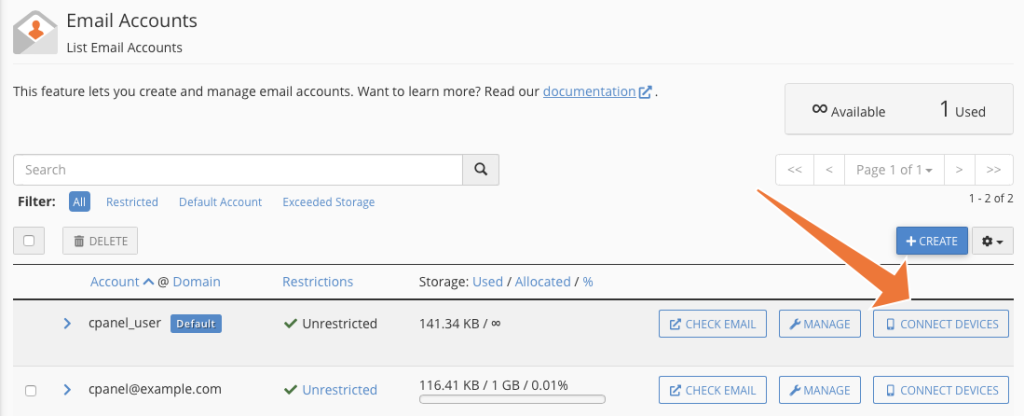
- This will open the Email Accounts section of your cPanel. Scroll down to the list of email accounts and click on Connect Devices.
- Scroll down to the Mail Client Manual Settings section and note the information in the Secure SSL/TLS Settings (Recommended) box. You will need this information to migrate your email.
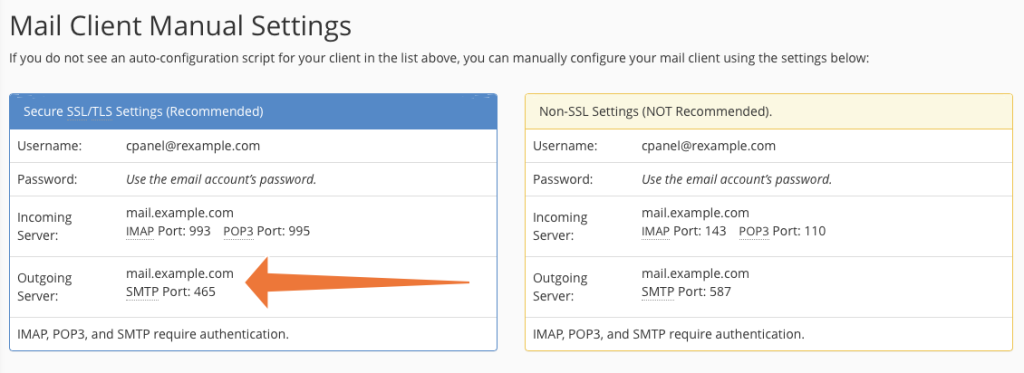
Note: The Incoming and outgoing server varies. Please check the incoming and outgoing servers assigned to your account within your emails.
This guide is provided as a courtesy to our customers; however, we can not guarantee that this process will not result in a loss of data. As with all processes that involve moving data, we strongly suggest that you Generate A Full Backup before proceeding with this migration.
Step 2: Import your email to Outlook.
Now you’re ready to import your email into Outlook.
- Open Outlook on your computer.
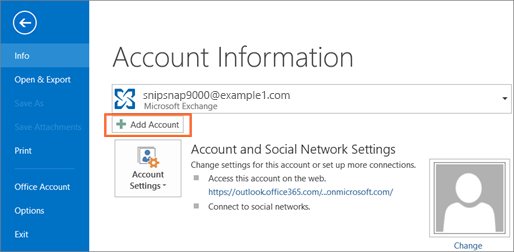
- On the upper left-hand panel, click on FILE.

- In the main window, click on the +Add Account button.
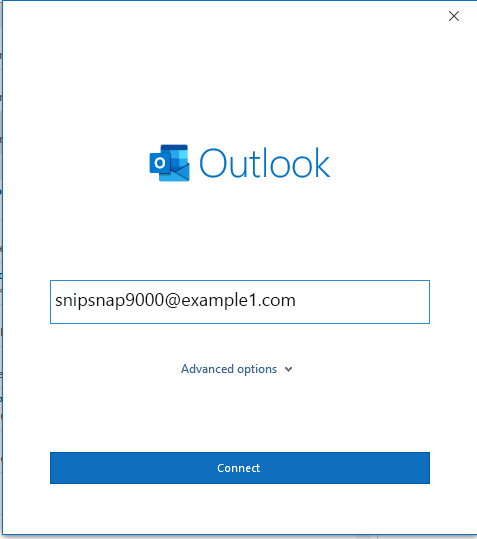
- On the Account Setup page, enter your hosted email address and click the Connect button.
- You have to select an account type on the next screen. Choose IMAP.
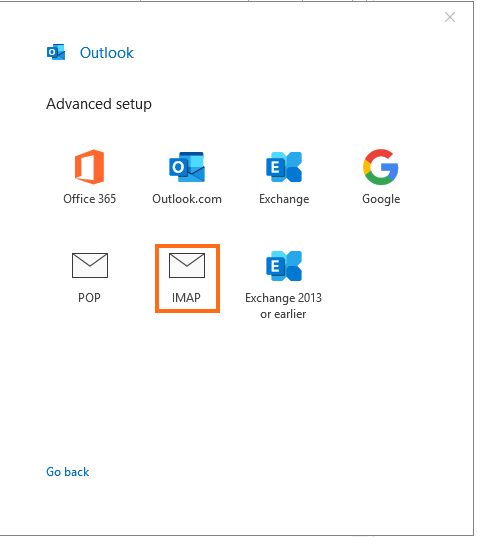
- Now you will need the information we gathered earlier. Use the data from the Secure SSL/TLS Settings (Recommended) box to fill in the account settings.
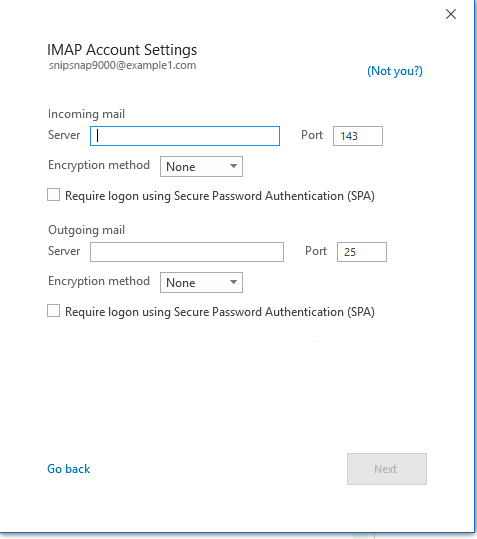
- Once you’re done inputting your connection settings, click the Next button.
- Enter your password on the last screen and click Done.
Outlook will now sync with your hosted email account. The email in your webmail account will now appear in Outlook, right below your Microsoft 365 mailbox.